 juunote
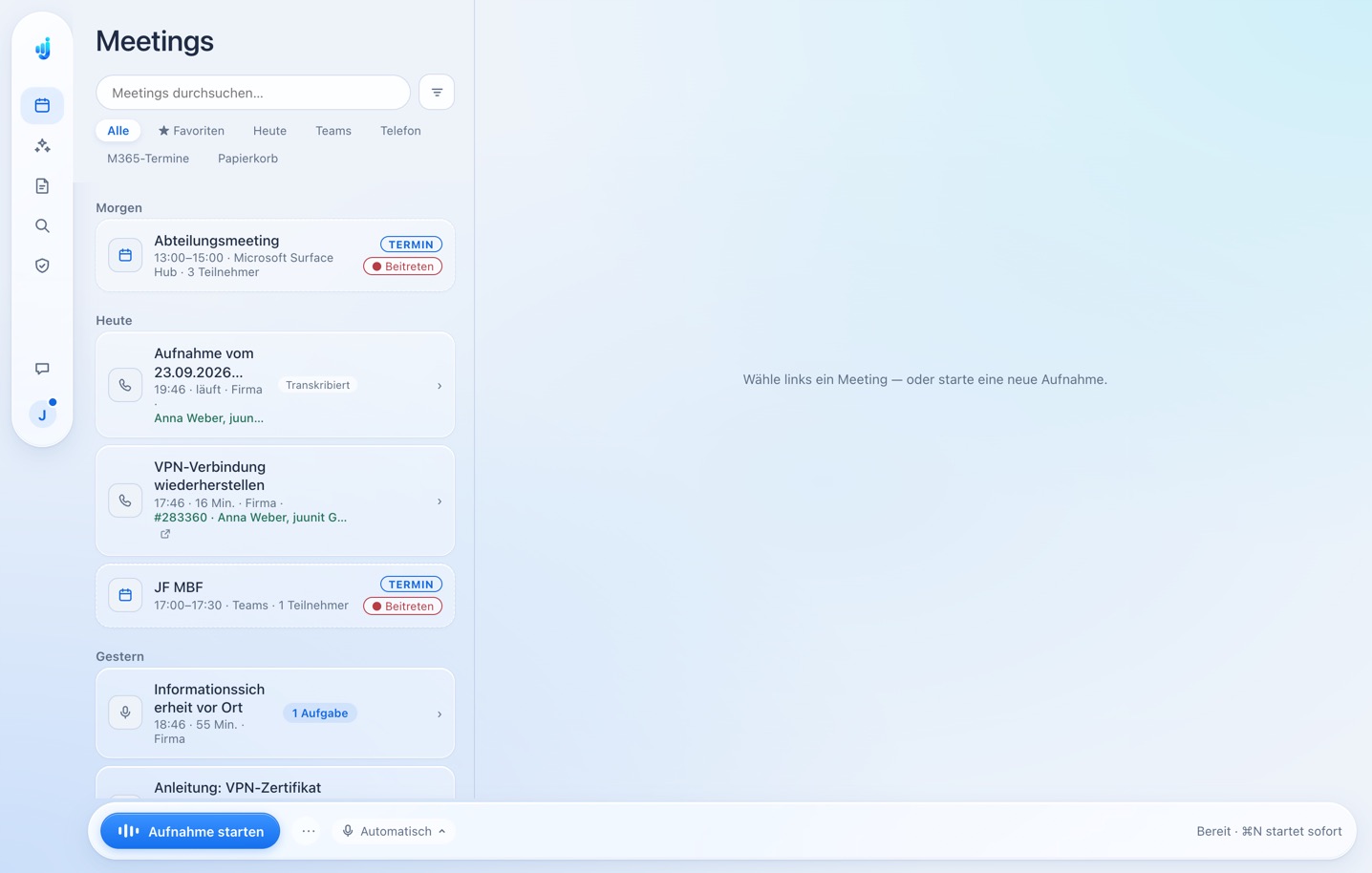
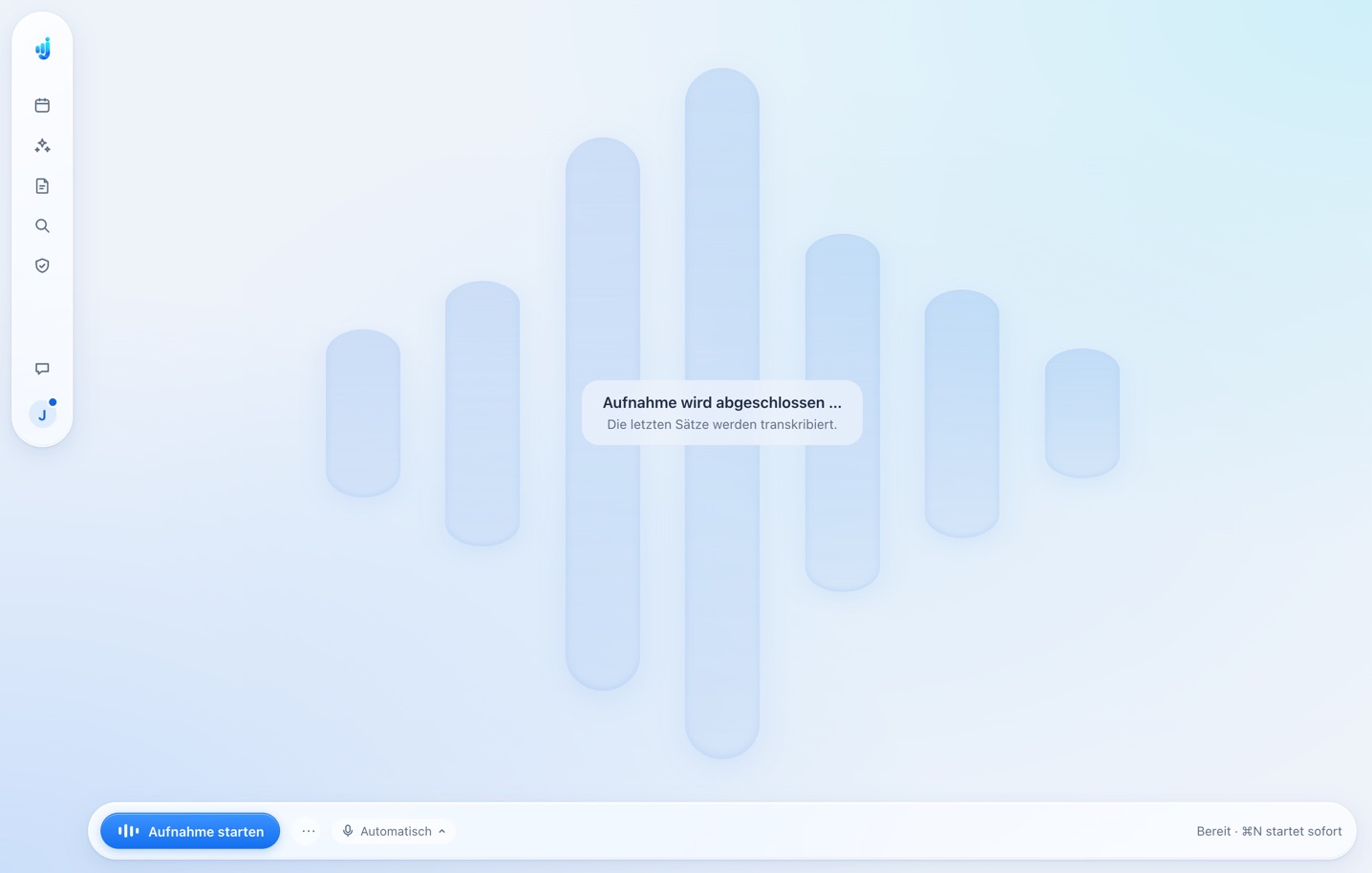
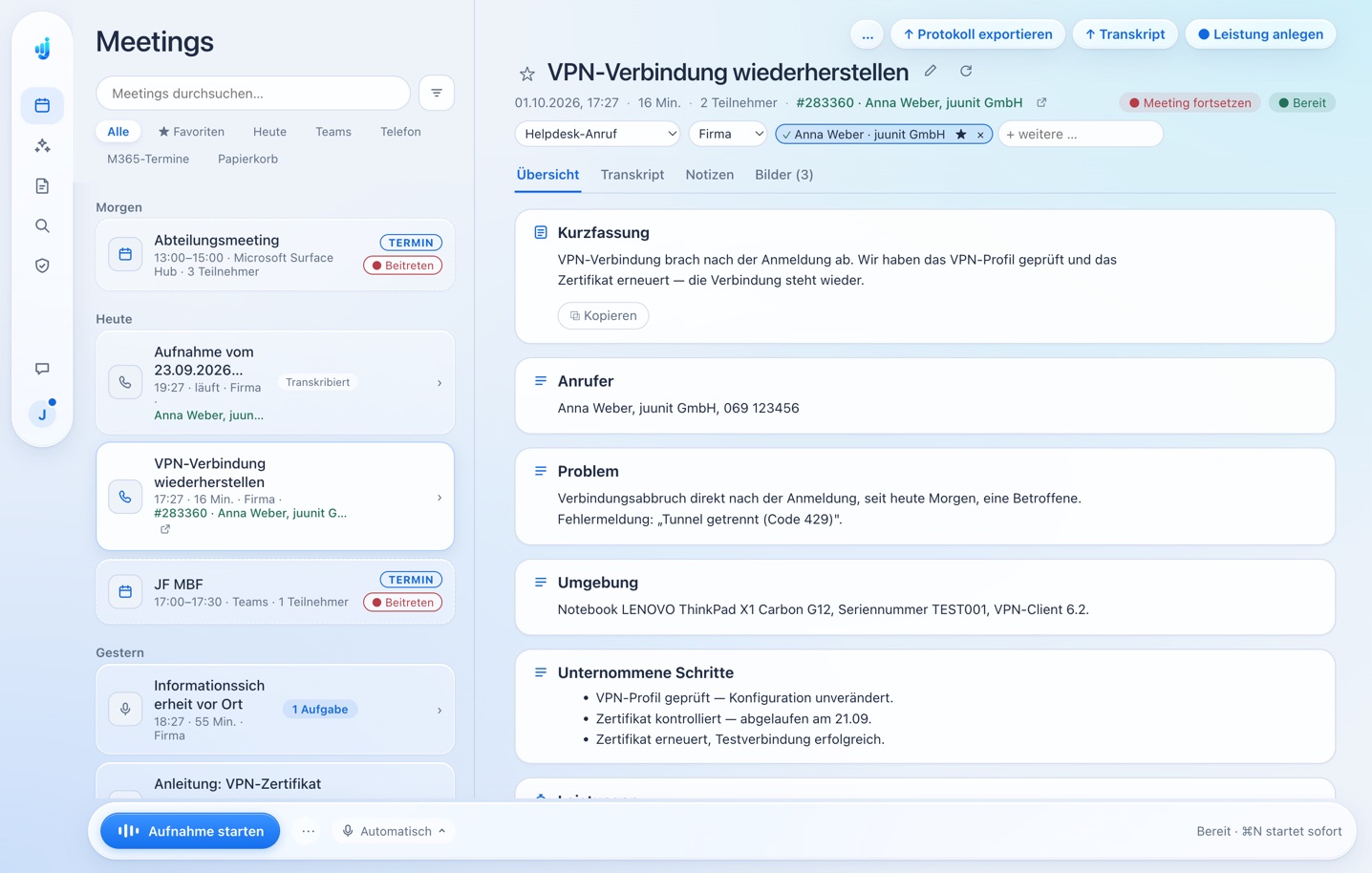

01Detected automatically


 Teams · Zoom · Webex · Phone
One click. You’re in.
juunote notices your call. Start recording with one click or ⌘N.
Teams · Zoom · Webex · Phonejuunote listens in on Teams, Zoom and phone calls — right on your computer, with no bot joining the call. Your transcript and your own notes become finished minutes with decisions and tasks.
Sign in with your company’s Microsoft 365 or Google Workspace account.

Be there for the person across the table, not for your keyboard.
No bot at the table, no invitation anyone has to accept. juunote runs on your computer, so you can simply listen.
Works with Microsoft TeamsZoomWebexCalls on your computerMeetings in the browserIn-person conversations Slack HuddlesGoTo MeetingRingCentral
From the first words to finished minutes. You stay in control.
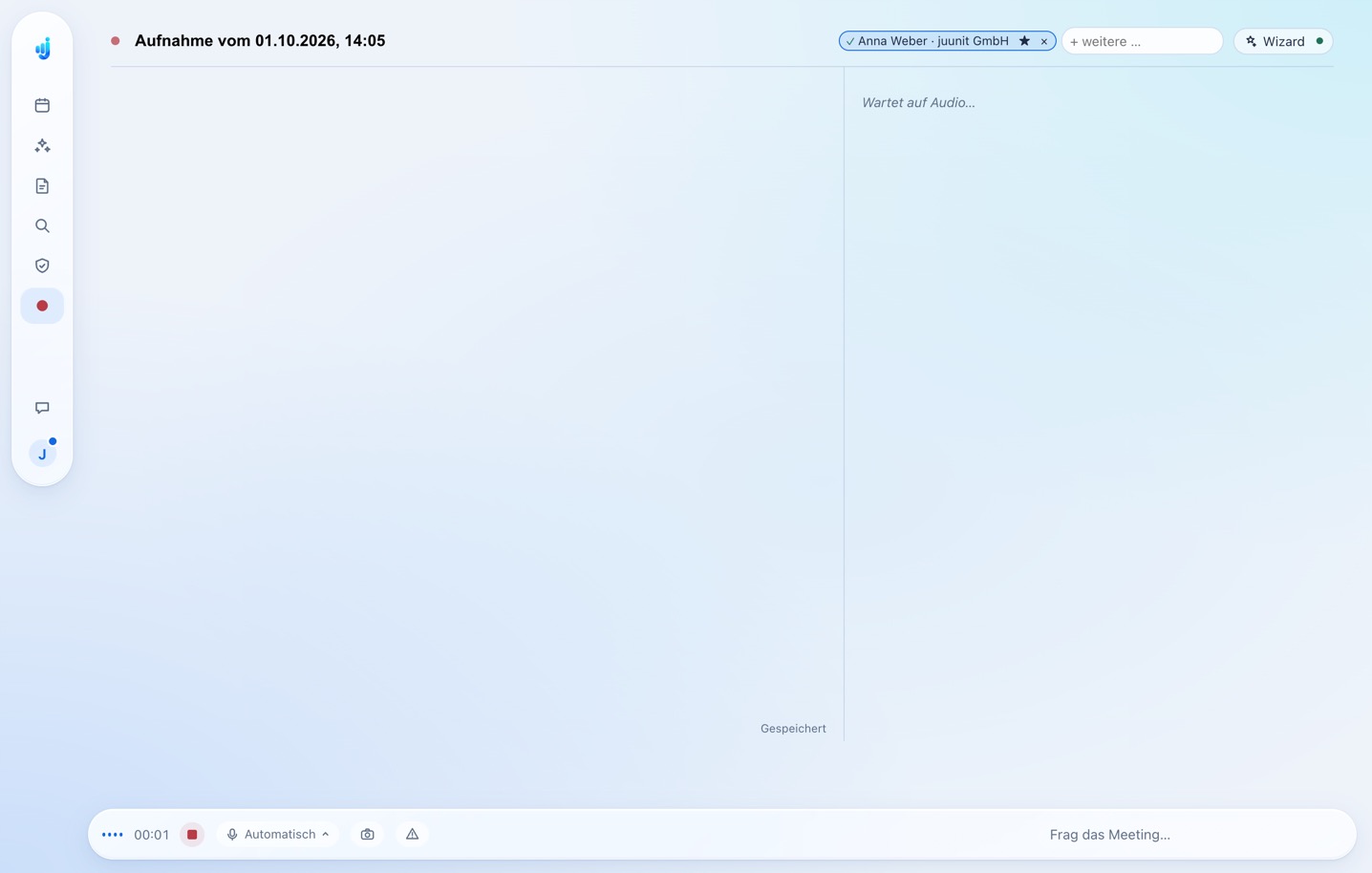
juunote notices your call. Start recording with one click or ⌘N.
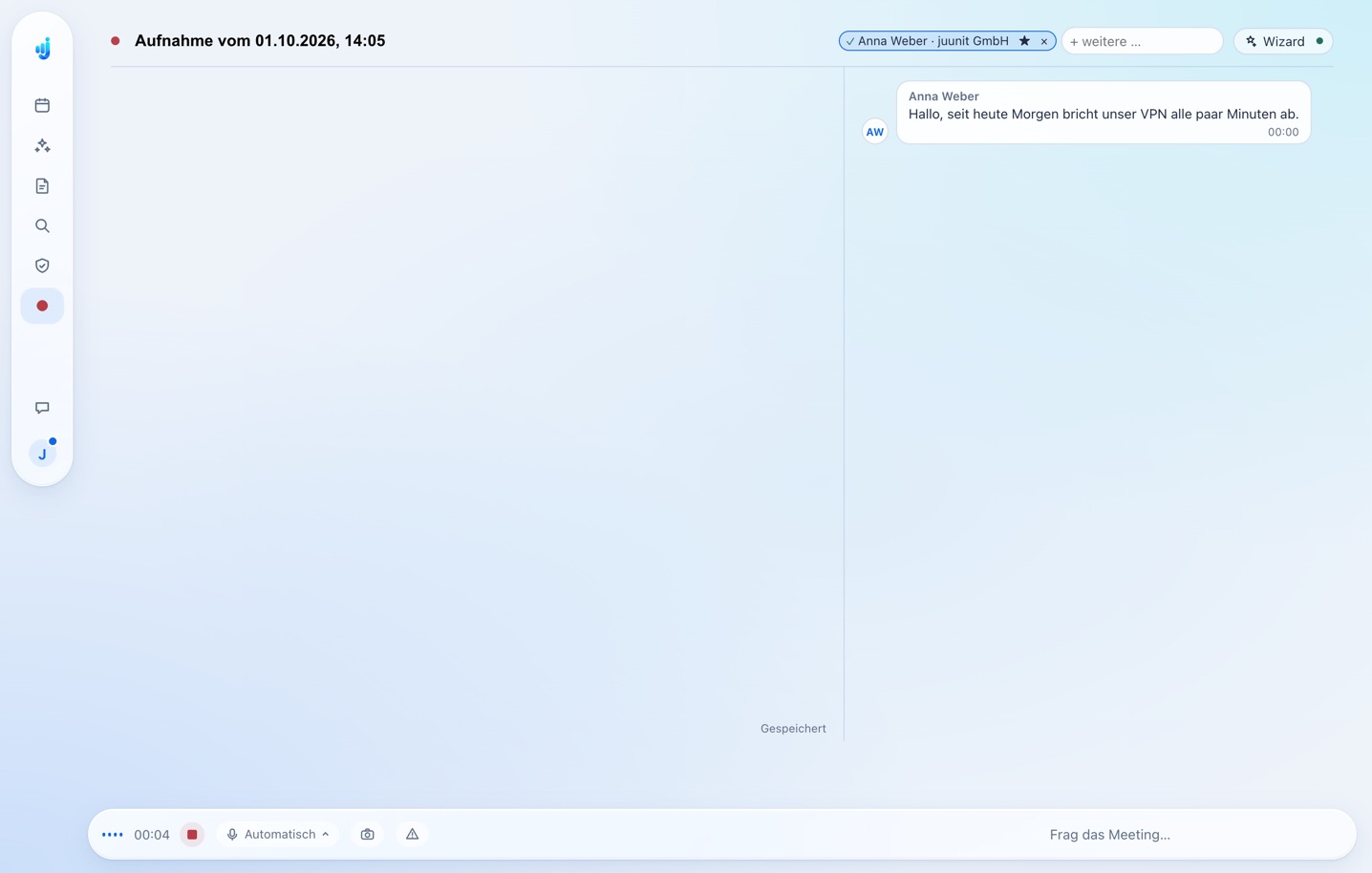
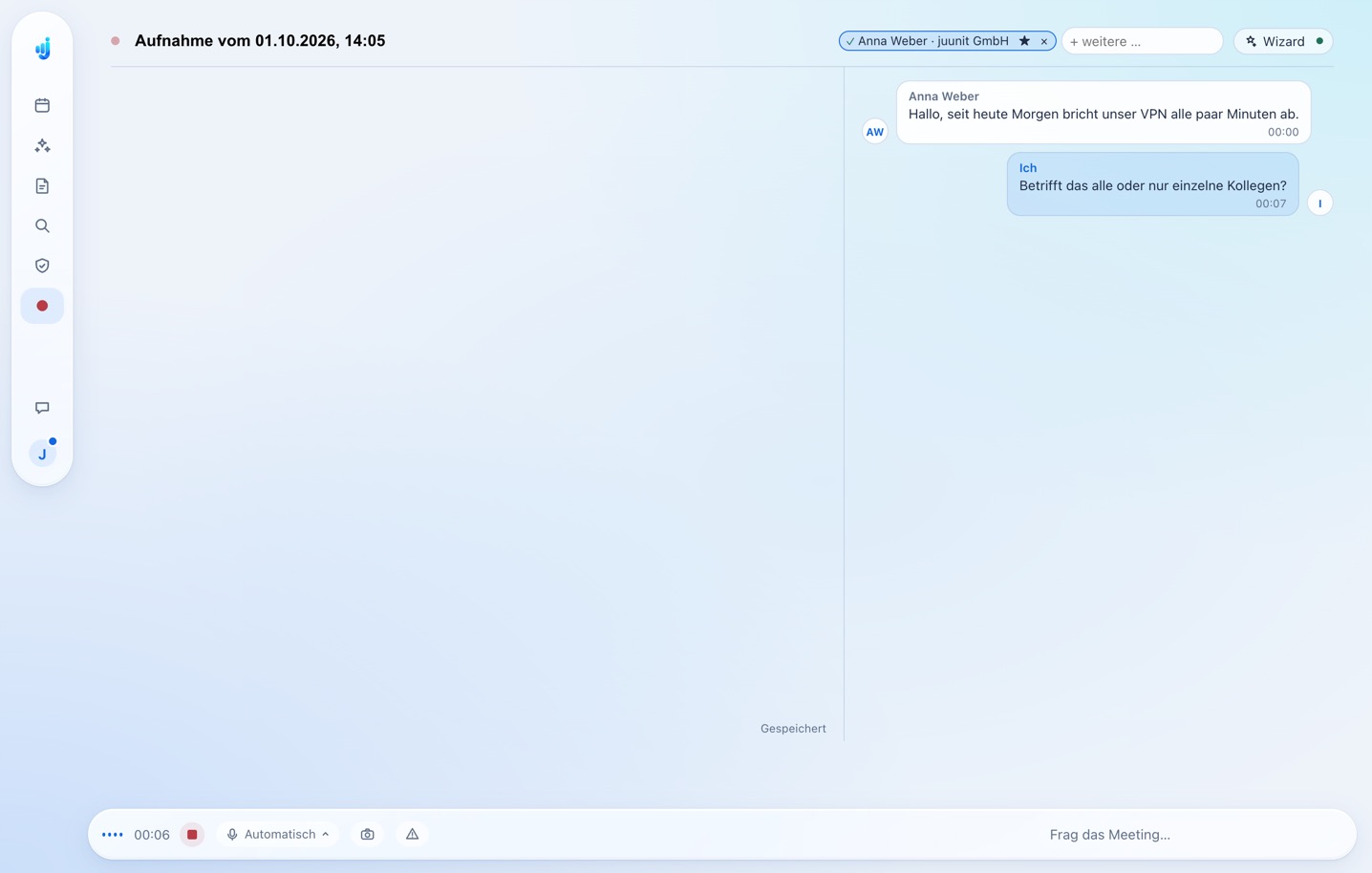
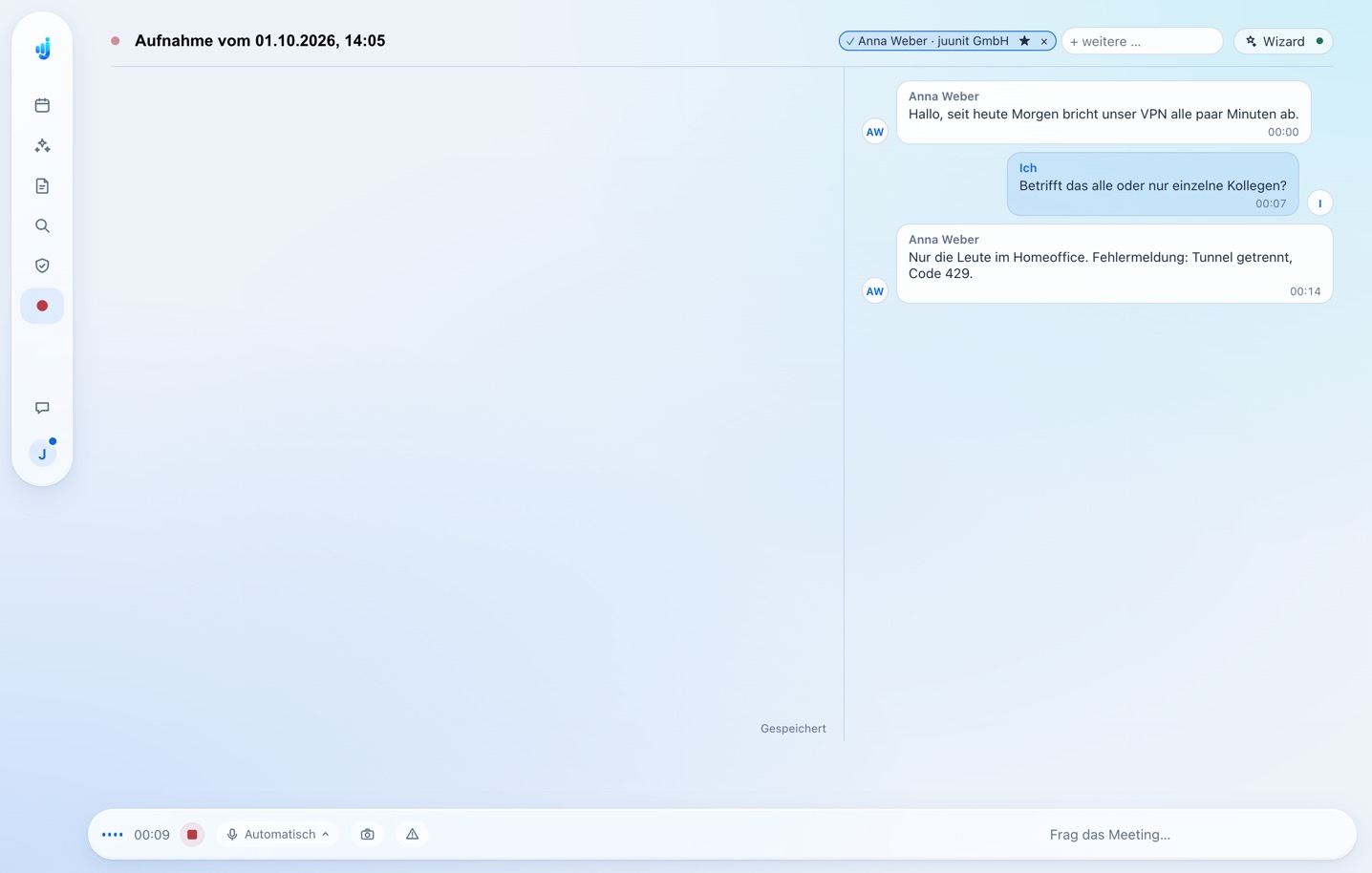
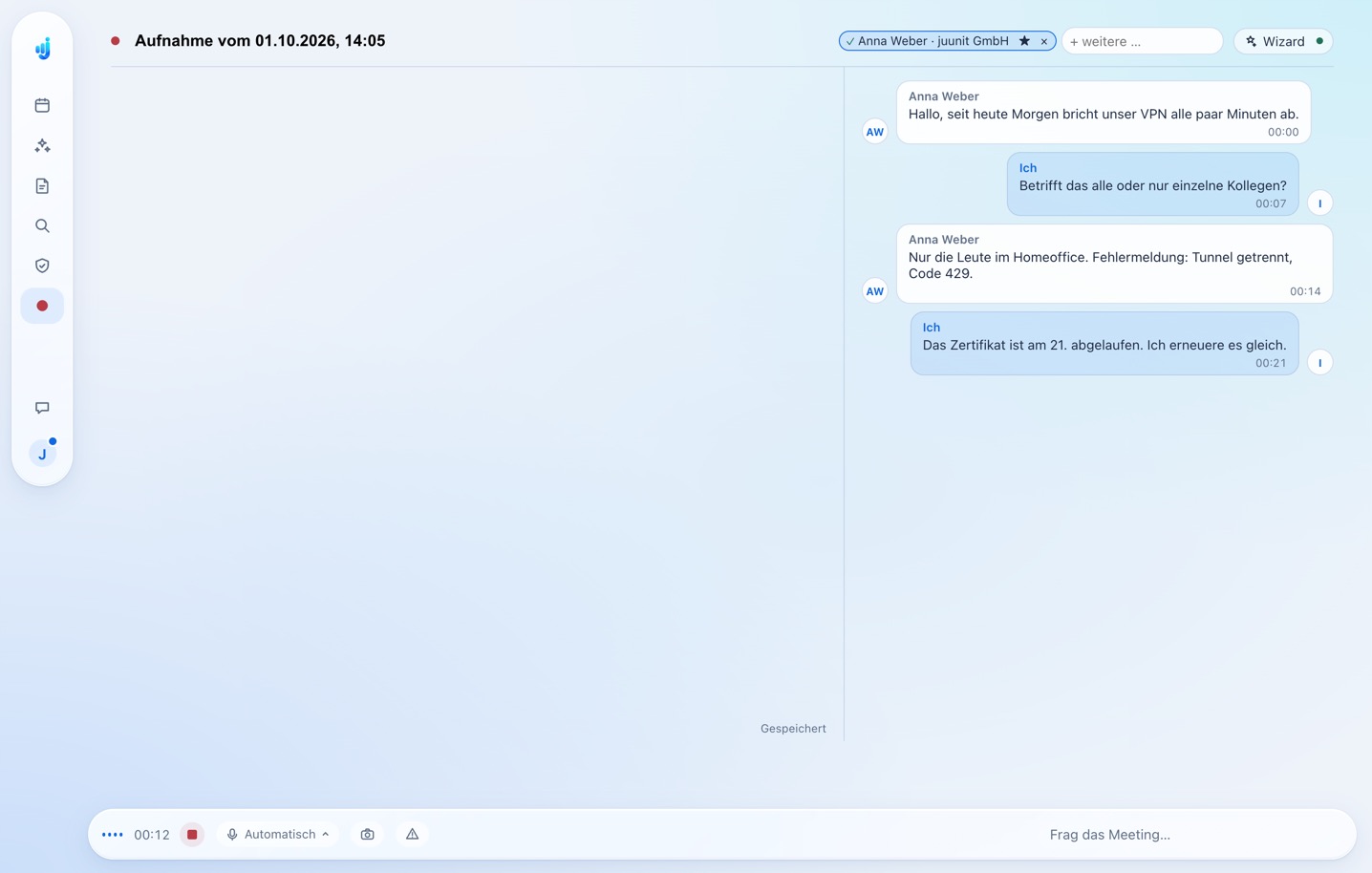
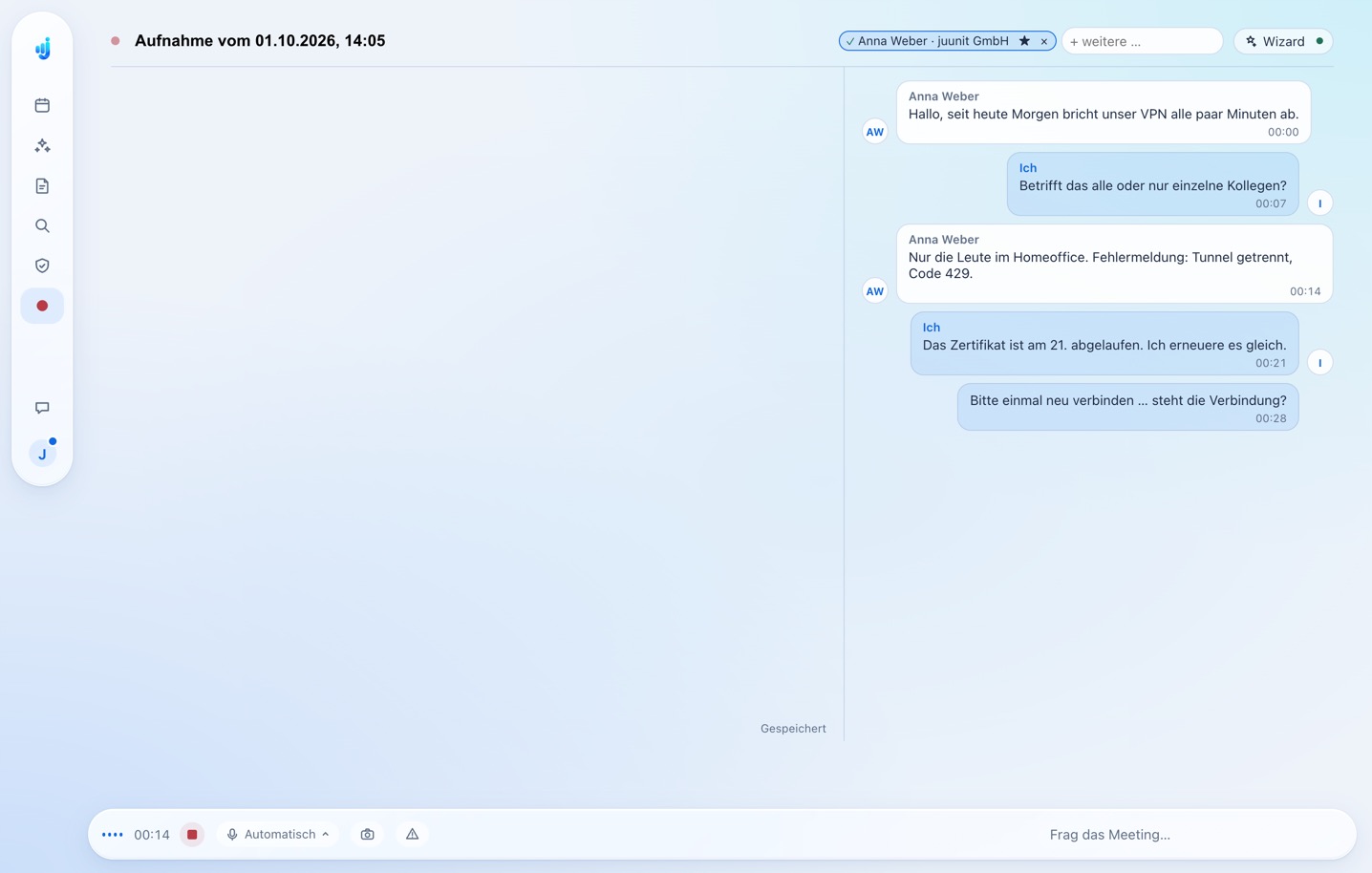
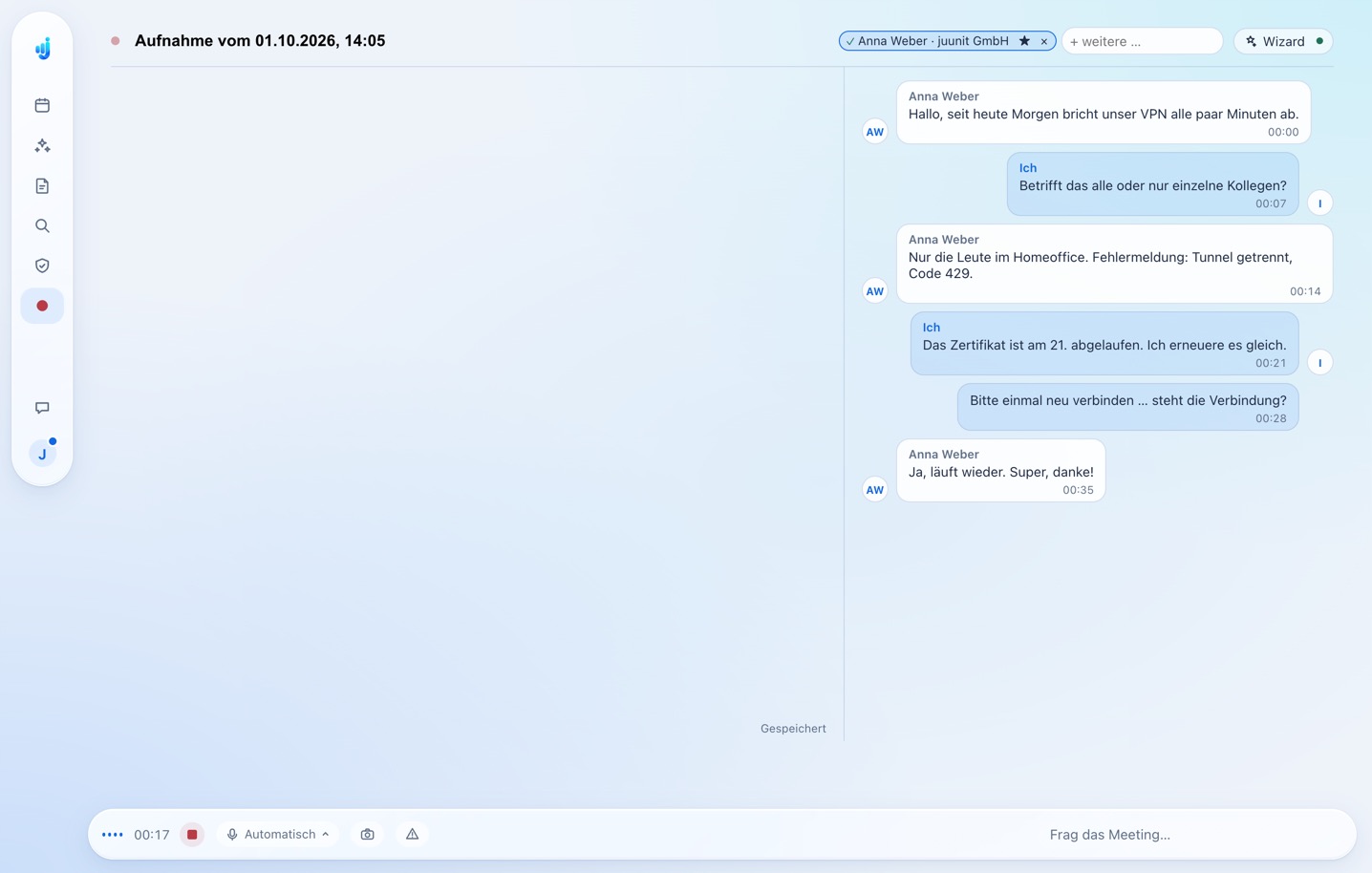
Teams · Zoom · Webex · PhoneThe transcript runs along. You capture your thoughts and stay in the conversation.
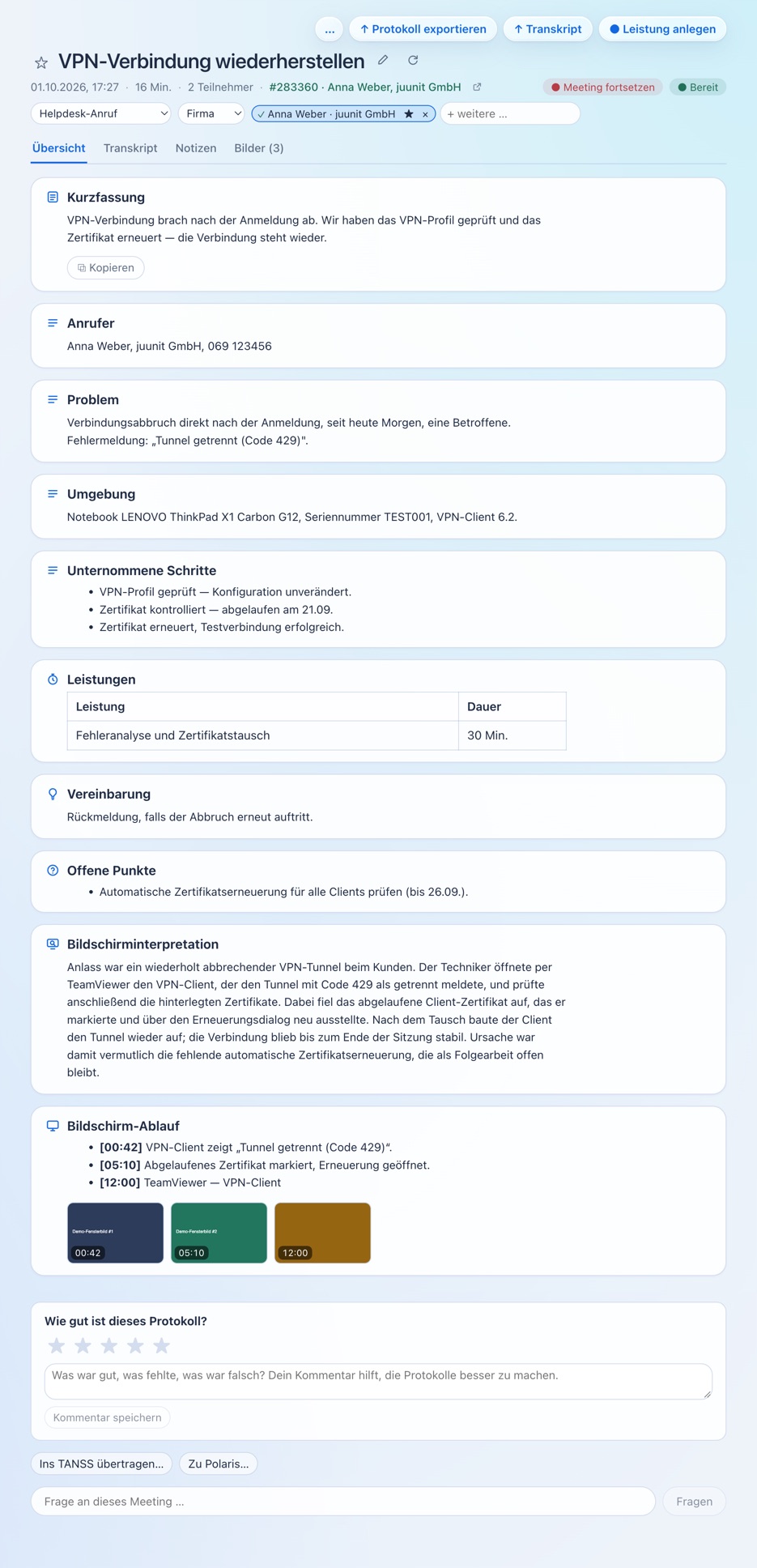
Your conversation and notes become structured minutes, ready for whatever comes next.
Set up in minutes. Try free for 14 days →
Transcribe locally. Capture what matters. Keep working right away.
Speech recognition runs locally on your computer. The audio never leaves your device and is discarded after transcription.
Only the meeting app and your microphone. No system sounds, no music in the background.
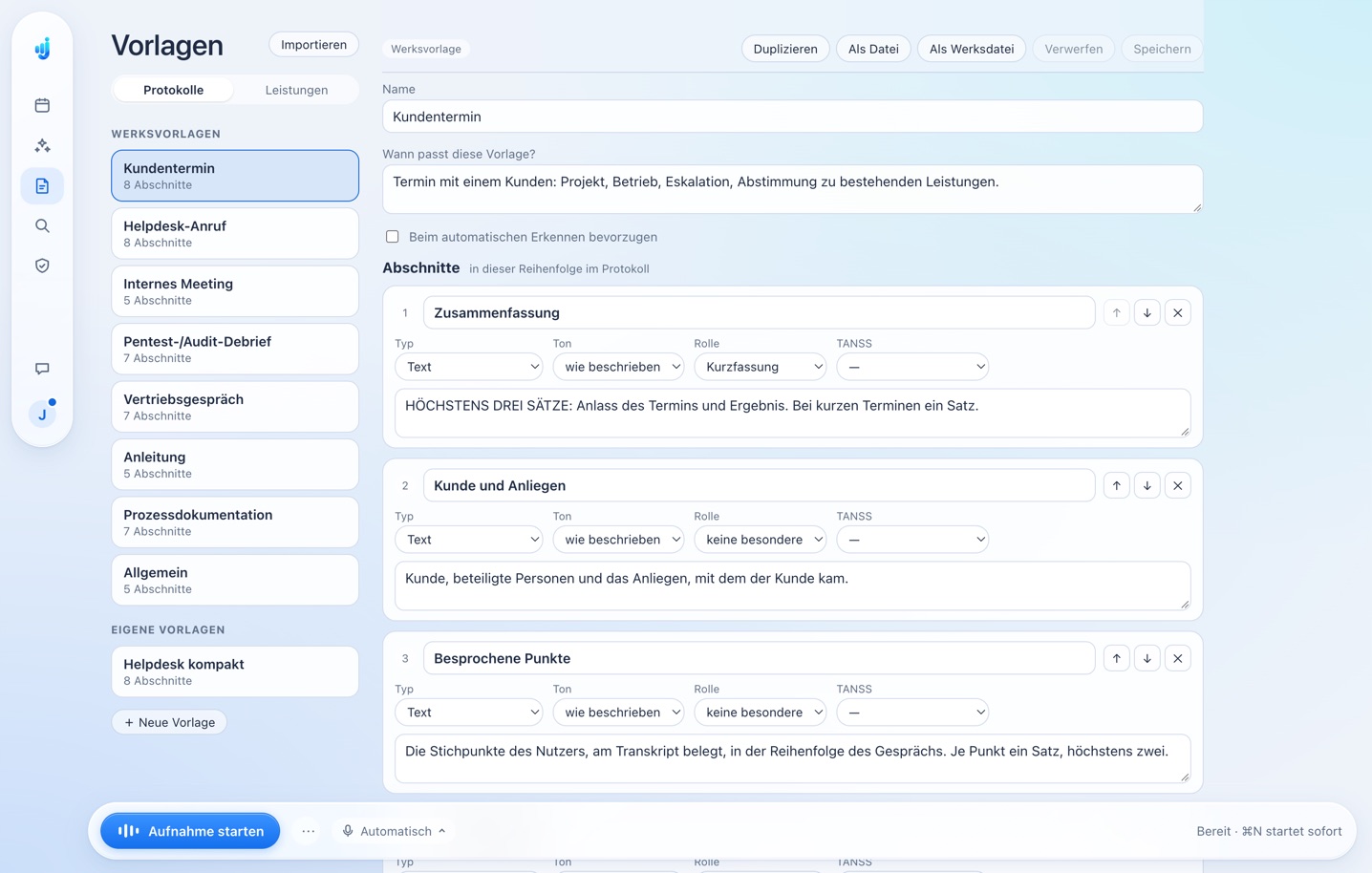
Customer meeting, internal meeting or process docs: pick a template or use your own.
Tell speakers apart, recognise voices if you like and add contacts and their company right away.
Minutes turn into tasks with owners and due dates — into Microsoft To Do in one click.
One click, one image. Your walkthrough becomes a step-by-step guide as a PDF.
Today’s meetings from Microsoft 365 — join and start recording in one click.
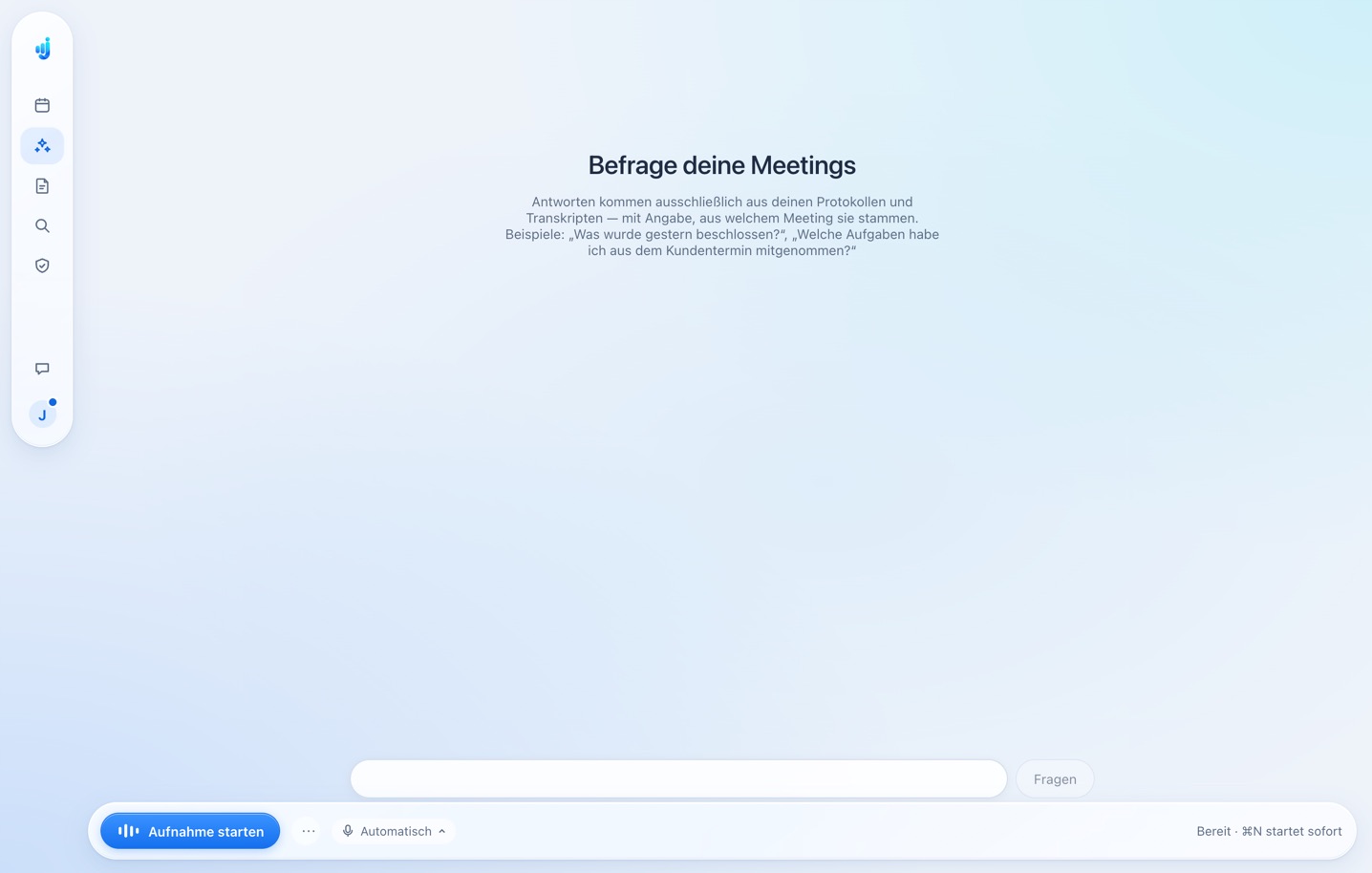
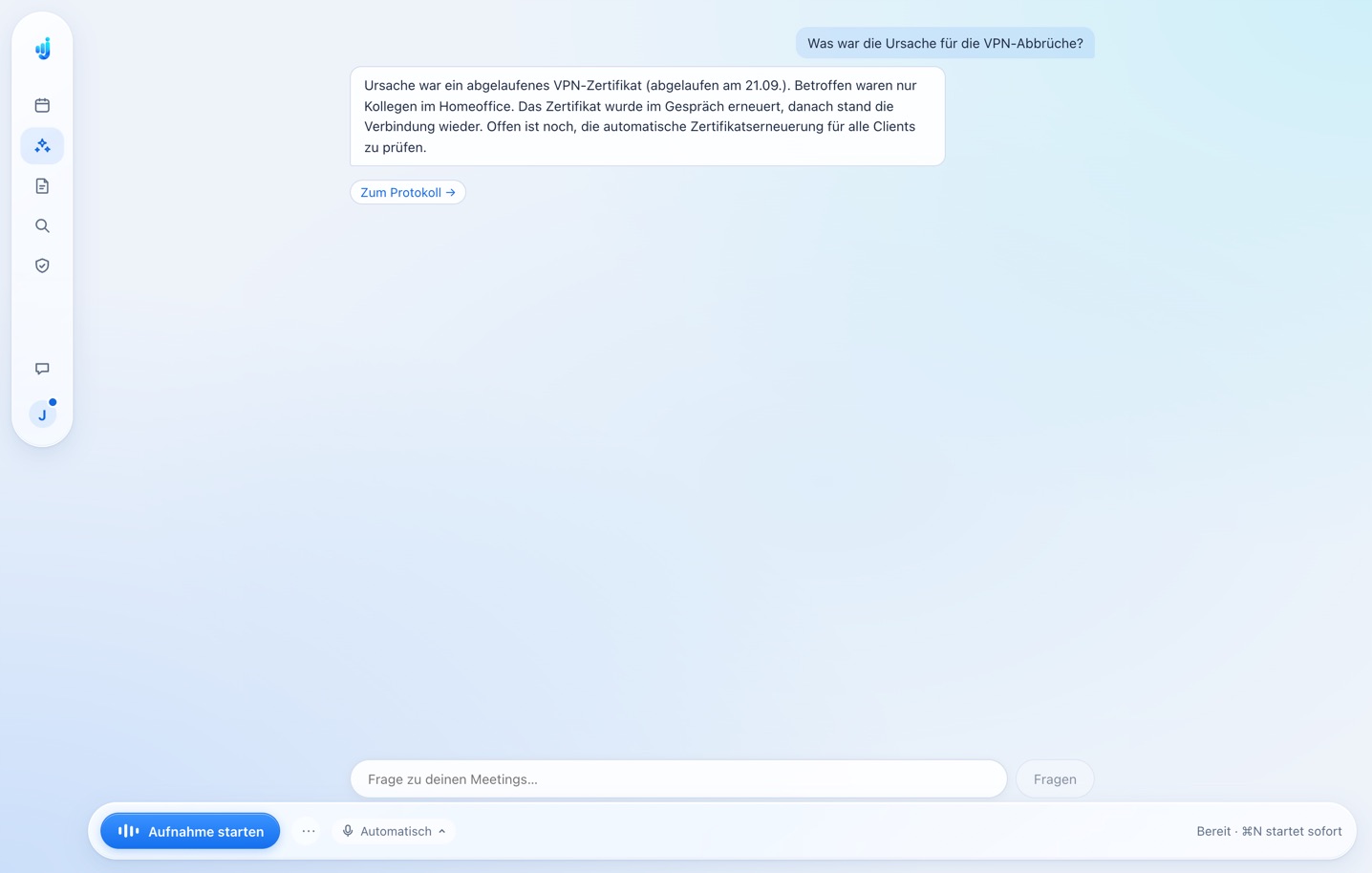
Answers from your minutes and transcripts. With a link to the meeting.
Mac and Windows, iPhone from November 2026. Synced and end-to-end encrypted.
Your conversation is transcribed on your device. Only the transcript and your notes go to the minutes AI, as text.
Cloud offerings differ from provider to provider. For the minutes, juunote also sends text to an AI in the cloud — details in the privacy notice.
juunote recognises the type of conversation and picks the matching template — or you choose it. Build your own templates in the editor.

For customer appointments: occasion, status, decisions and who does what by when.
The rollout of the new dispatch system is on track; two sites are lagging. The client wants training before year end.
Anna Weber (head of dispatch): Kassel has seen duplicate orders since the update.
For team meetings: concise, with decisions and tasks — without anyone having to take notes.
Release 1.1 is out and feedback is mostly good. Next focus: more languages.
For first and sales conversations: needs, budget, decision makers and what happens next.
Notes for 12 project leads — all handwritten so far, tasks get lost.
Budget approx. €4,000 a yearStart Q1 2027Decision: management
Pro plan for 12 seats, onboarding by video call.
For company workflows: trigger, roles, steps and special cases — the basis for handbooks and onboarding.
The signed contract has reached HR.
HRTeam leadIT
Start after a public holiday: hand over the laptop the working day before.
You demonstrate, juunote takes notes: speech and click images become an illustrated guide to pass on.
The floor printer prints from your own laptop.
Signed in to the company Wi-Fi.
juunote talks to the tools that matter in your day — and only sends what you confirm.
Plus 124 tools from seven industries — with integration and setup. All by industry →Yours is missing? Enquire now →
Move the sliders to match your day — and see what juunote gives back every month.
Assumption: juunote takes over the chosen share of follow-up work on minutes. Calculated with 4.33 weeks per month.

Install it, sign in with your company’s Microsoft 365 or Google Workspace account, and you’re ready. 14 days with every Pro feature.






 TANSS
 DOMUS
 Personio
 Salesforce
 Addison
 Asana
 Dalux
 NinjaOne
 casavi
 BambooHR
 Zoho CRM
 Clio
 Notion
 Autodesk Construction Cloud
 Jira Service Management
 iX-Haus
 rexx systems
 Yardi
 softgarden
 RIB iTWO
 Zammad
 facilioo
 Recruitee
 weclapp
 sevDesk
 Wrike
 Candis
 Basecamp
 Allplan
 OTRS
 Propstack
 SmartRecruiters
 Help Scout
 Workable
 Aircall
 Lever
 Attio
 SysAid
 Troi
 KIX
 Kaseya
 i-doit
 MOCO
 PlanRadar
 Starface
 Haufe PowerHaus
 HiBob
 Pipedrive
 Advoware
 monday.com
 Thinkproject
 HaloPSA
 Impower
 Workday
 Zendesk
 iManage
 Confluence
 Microsoft Project
 TeamViewer
 Nevaris
 3CX
 DocuWare
 Trello
 Bluebeam
 Freshservice
 Allthings
 Teamtailor
 CentralStationCRM
 JOIN
 Close
 Teamwork.com
 Fieldwire
 Znuny
 123erfasst
 osTicket
 Craftnote
 ManageEngine ServiceDesk Plus
 j-lawyer.org
 Toggl Track
 Brevo
 Matrix42
 N-able
 HubSpot
 DATEV
 awork
 Capmo
 Autotask
 Aareon
 Factorial
 Dynamics 365
 Actaport
 ClickUp
 Procore
 ConnectWise
 etg24
 SAP SuccessFactors
 Freshdesk
 d.velop
 sipgate
 ELO
 d.vinci
 Odoo
 Lexware Office
 Miro
 Oracle Aconex
 ServiceNow
 Trimble Connect
 TOPdesk
 onOffice
 Greenhouse
 Intercom
 Smartsheet
 SharePoint
 Airtable
 Nextcloud
 Harvest
 Ashby
 Ivanti
 GLPI
 Atera
 SyncroMSP